Google review link: how to get it, share it and ask for reviews
Your Google review link is already waiting in your Business Profile: no generator needed. Here's where Google puts it, how to turn it into a QR code, where to share it, short messages to copy, and what Google's rules forbid when you ask for reviews.
 By Jérémy Santos Updated on 30 October 2026 Tested on his own SemChat account: first audit on 29 October 2026.
 This page is part of the guide: Google Business Profile SEO

Asking for a review at the right moment, without the awkwardness. Illustration by Zéro Corvée.
Happy customers don’t always think to leave a review, and some never find the button. A Google review link fixes the second problem. It sends people straight to the review form of your Business Profile, the listing at the heart of your Google Business Profile SEO. The steps below quote Google’s own help pages, read on 30 October 2026. The SemChat button on this page is an affiliate link.
What a Google review link is
It’s a short web address, created by Google for your business, that opens the review window of your profile. Google offers it as a link to copy and as a QR code to print.
Why not just ask customers to search for you?
Because every extra step loses people. To review you without a link, a customer has to search your name, pick the right listing among similar ones, scroll to the reviews and find the button. With the link, they tap once and start writing.
How to get your Google review link
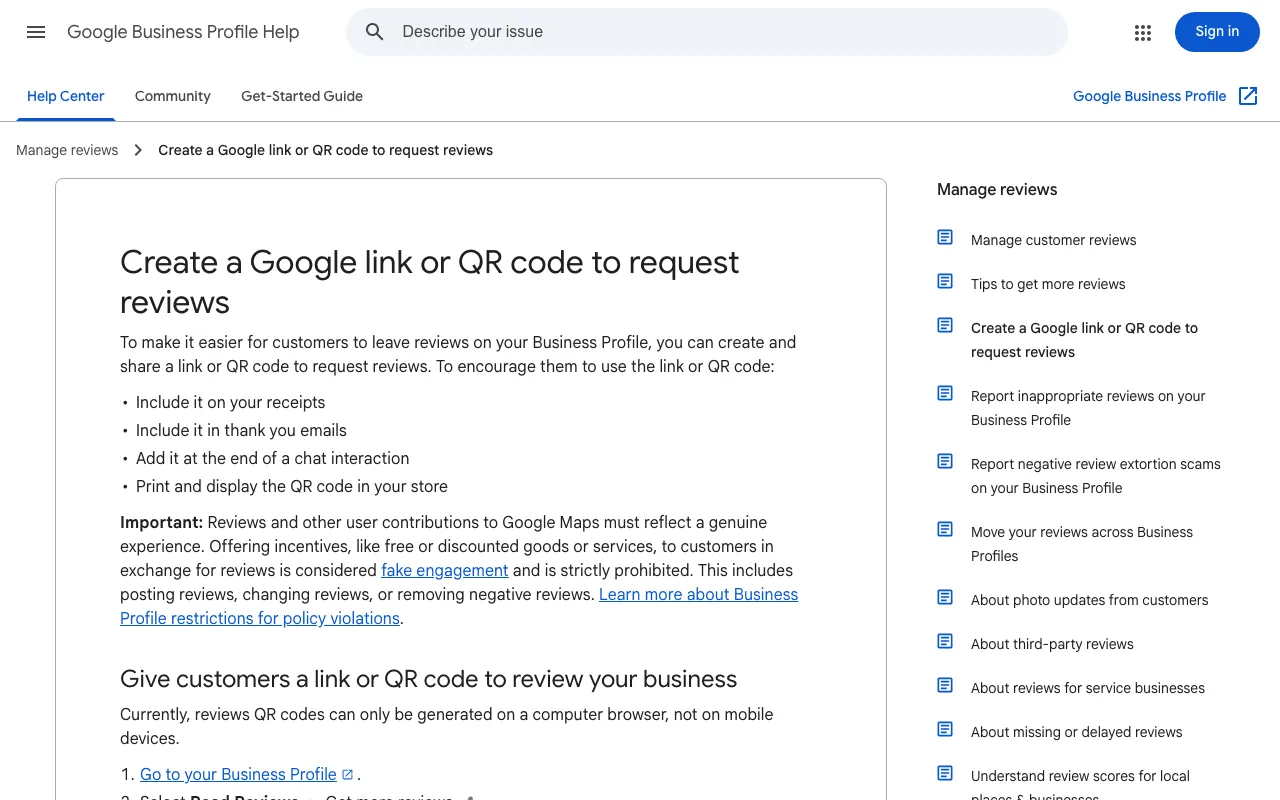
Google’s help page “Create a Google link or QR code to request reviews” is the only source for the steps below.
From your Business Profile on a computer
- Go to your Business Profile.
- Select Read Reviews, then Get more reviews.
- To copy the review link, select Copy.
- To download the QR code, right-click it and select Save image as.
From your phone
Google’s page says: “Currently, reviews QR codes can only be generated on a computer browser, not on mobile devices.” It doesn’t describe phone steps for the link either, so I won’t invent any. The easy fix: copy the link once on a computer and email it to yourself, or keep it in a note on your phone.
From a Google search for your business
“Go to your Business Profile” means, in Google’s other help pages, opening Google Search or Maps on your computer and searching for your business’s name and city while signed in to the account that manages it. Your profile’s management options appear there, including the review panel. If you don’t have a profile yet, start with how to add your business to Google.
With Google’s Place ID finder
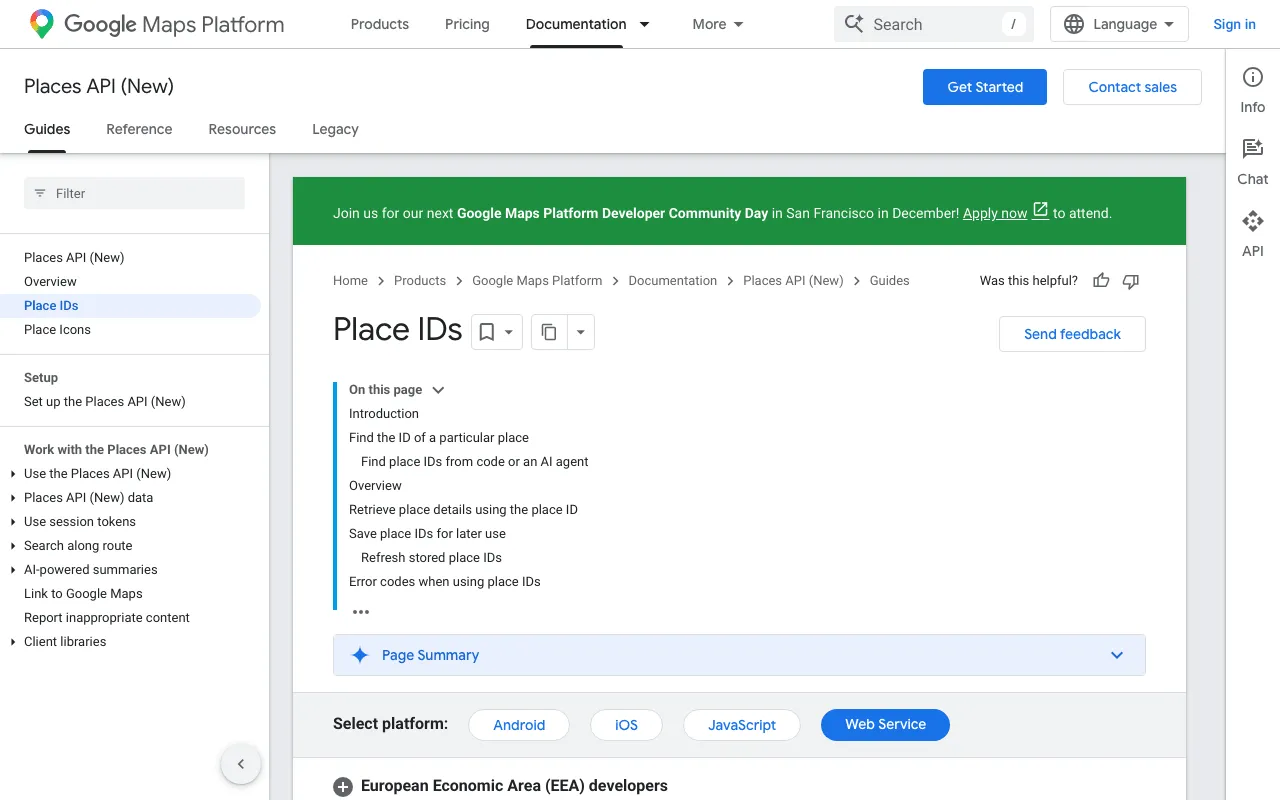
Developers know another route. Google Maps Platform explains that “A place ID is a textual identifier that uniquely identifies a place,” and that “The place ID finder looks up one place at a time in a browser.” Some third-party tools use it to build review links. As a business owner, treat it as a fallback: the link from your profile is simpler and comes from Google directly.
Review link generators and shorteners: what they add
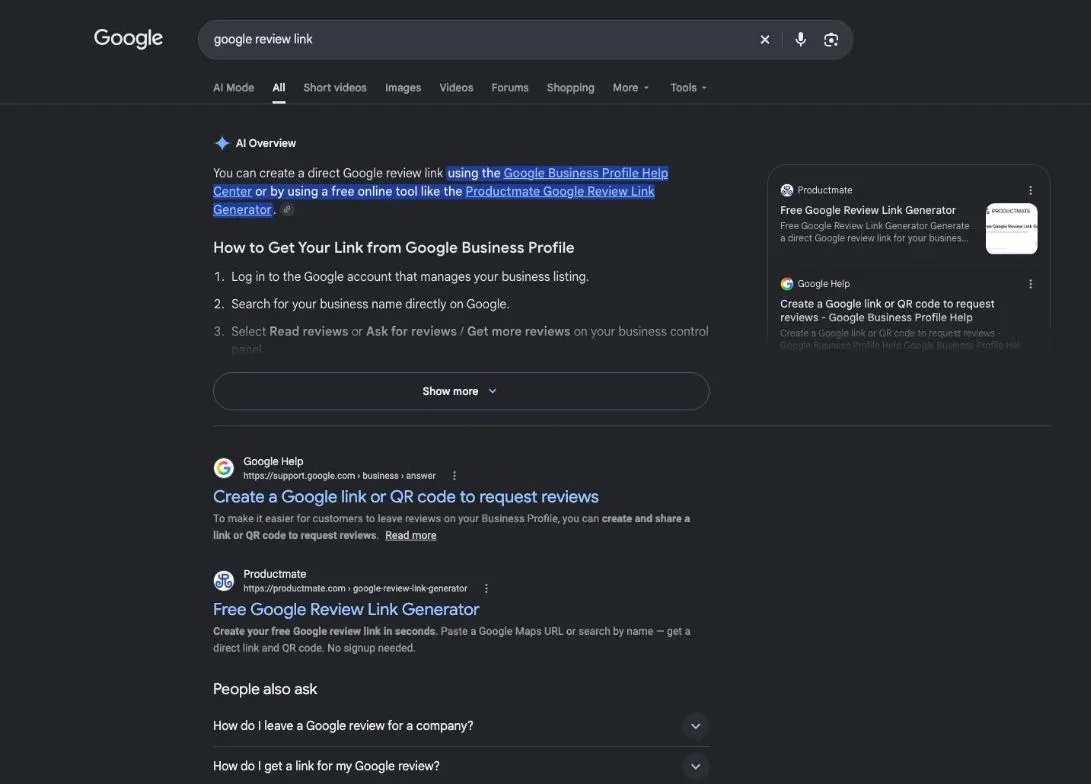
Search results also show third-party review link generators; productmate.com and hovercode.com were cited in Google’s AI Overview on 29 October 2026. We haven’t tested them, so we don’t recommend them. You don’t need one to get a link: Google gives you both the link and the QR code for free.
Where and how to share your review link
Google lists the places itself: “Include it on your receipts,” “Include it in thank you emails,” “Add it at the end of a chat interaction,” and “Print and display the QR code in your store.” It adds: “You can also send review requests through email, WhatsApp message, or Facebook post.”
- 1 Receipt Print the link or QR code.
- 2 Thank-you email One line and the link.
- 3 End of a chat Text, WhatsApp, Messenger.
- 4 Counter A printed QR code.
By text message and email
Send it the day of the service, while the experience is fresh. Keep the link on its own line so it stays easy to tap.
As a QR code at your counter
Print it near the register, on the receipt or on a card in the bag. The customer scans it later, at home, if they want to.
On your website and social media
Add the link to your email signature, your contact page and your invoices. On social media, Google itself mentions a Facebook post.
How to ask a customer for a review
The right moment to ask
Right after the job is done and the customer is happy: at checkout, after a meal, at the end of a project. For a regular, ask once, not every visit.
Short messages to copy for text, email and counter
A good request has three parts: the thanks, the request, the link. These messages are written for this page; swap the brackets for your words.
- 1 The thanks Name the service you gave.
- 2 The request One sentence, no pressure.
- 3 The link Straight to your review form.
Text: Hi [name], thanks again for coming in today. If you have a moment, a Google review would really help us: [link]. [your name], [business]
Email: Hi [name], thanks for choosing [business] for [the job]. Your review helps other people nearby find us. You can leave it here: [link]. And if anything could be better, just reply to this email. [your name]
Counter: “If you have a minute later, a Google review would help us a lot. The QR code is right here.”
Once reviews come in, reply to the ones where you have something to add. Google’s tips for replies: “Keep it short and simple,” and for negative reviews, “Never share a reviewer’s private information or engage in personal attacks.” If a situation is complex, Google suggests you “politely request that the reviewer contact you via phone or email to resolve the issue privately.” Google also notes that “A mix of positive and negative feedback often feels more trustworthy,” so one bad review among honest ones isn’t the end of the world.
What Google forbids when you ask for reviews
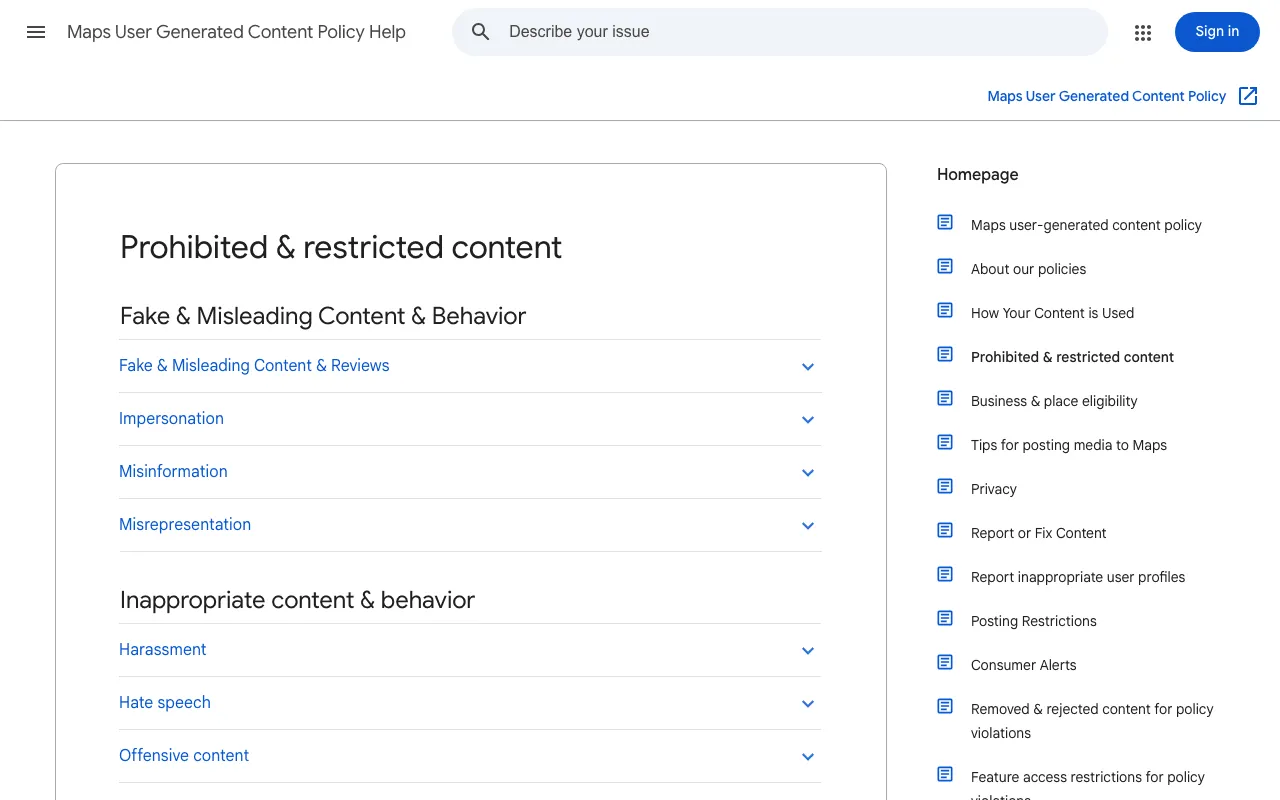
The rule on incentives is blunt: offering them, “like free or discounted goods or services, to customers in exchange for reviews is considered fake engagement and is strictly prohibited.” Google’s Maps policy also bans “Reviews or ratings that have been paid for, directly or in kind,” and forbids merchants to “selectively solicit positive reviews from customers,” to “require or pressure users to leave ratings or write reviews while on the premises,” or to request “that specific content be included.” Reviews from employees or family count as a conflict of interest.
Can you make a five-star review link?
None of the Google pages I read describes a link that pre-fills a rating, so I won’t claim one exists. And the idea runs against Google’s rule that a review “should reflect an actual experience with a business, and be genuine and unbiased.” Send the same plain link to every customer, happy or not.
Reviews are one part of Google Business Profile optimisation, and your website is the other half of local SEO for small business. If a review comes with an unfair photo, see how to remove photos from Google Business Profile. SemChat can check your website’s pages, but not your profile or your reviews: it has no Google Business Profile connector (checked 29 October 2026). More in our SemChat review.
Your Google review link takes a minute to copy. Share it everywhere you already talk to customers, and ask everyone the same way.
Frequently asked questions
How do you find your Google review link?
On a computer, go to your Business Profile, select Read Reviews, then Get more reviews, and select Copy. The same panel gives you a QR code you can save with a right-click (Google Business Profile Help, read 30 October 2026).
Can you get a Google review link without a Business Profile?
Google's help steps all start from your Business Profile. Google Maps Platform also documents a place ID finder that identifies any place, but that's a developer tool, not the merchant route. The simple path is to add your business to Google and verify it first.
How does a customer write a Google review on a phone?
They tap your link or scan your QR code, pick a star rating and write their review. Google notes that customers must be signed into a Google Account to leave a review, and that they can set one up with a non-Gmail email address.
Can you offer a discount in exchange for a review?
No. Google writes that offering incentives, like free or discounted goods or services, in exchange for reviews “is considered fake engagement and is strictly prohibited.” You can ask every customer for an honest review, with nothing in return.
Let your AI do the chores of getting found online.
10% off your subscription, for life with my link, if you subscribe within 2 weeks of signing up. No code. All about the SemChat promo code
Affiliate link: it costs you nothing extra.
Verified sources
- Google Business Profile Help: Create a Google link or QR code to request reviews (30/10/2026)
- Google Business Profile Help: Tips to get more reviews (and write better replies) (30/10/2026)
- Google Maps user contributed content policy: prohibited and restricted content (30/10/2026)
- Google Maps Platform documentation: Place IDs (30/10/2026)
- Google Business Profile Help: Manage your Business Profile photos and videos (opening your profile from Search or Maps) (30/10/2026)